This article guides you through setting up your notification settings.
On this page
Watch a walkthrough
Set your Verifile client portal notifications
- Log in to the Verifile client portal.
- Select My Details from the toolbar.
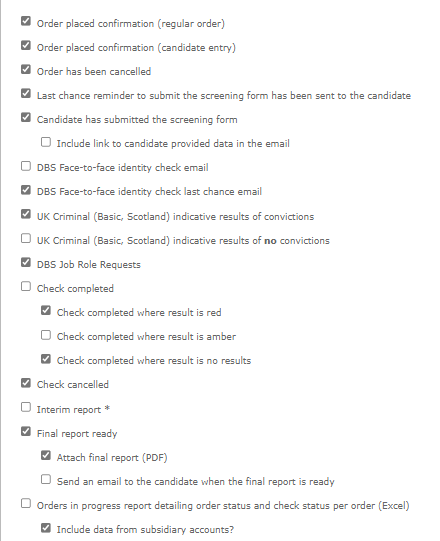
- Click Email Preferences.
- Tick the notifications you wish to receive.
- Untick any notifications you no longer require.
Changing you company name or address
- Ensure you are an active user on your Verifile account.
- Email your Customer Success Manager (CSM).
- If you are unsure who your CSM is, contact the team at Customer Success.
- Include the following information in your request: Current account name / New registered company name
- Submit your request and await confirmation if further information is needed.
Change your company email address
Option 1: Contact Client Services Directly
- Log in to the client portal.
- Click the Chat button (bottom-right corner), if available.
- Alternatively, call Client Services Team on +44 (0) 1234 339 300 (Monday to Friday, 08:30–17:30 UK time).
- Complete the required security checks.
- Provide:Your current email addressYour new email address
Option 2: Request via a Registered User
- Ask a registered or active user on your account to submit the request.
- They should email Client Services Team.
- The email must include: Full name and current email address of the user /New email address to be applied
What Happens Next
- You will receive temporary login details at your new email address.
- Log in using these details.
- Update your password immediately.
- Ensure any temporary passwords are copied exactly (without extra spaces) to avoid login issues.
Was this article helpful?
That’s Great!
Thank you for your feedback
Sorry! We couldn't be helpful
Thank you for your feedback
Feedback sent
We appreciate your effort and will try to fix the article